


In my last article, I documented how OpenAI chose to destroy Sora rather than open-source it. How they spent billions building a video generation model, collected biometric data from a million users, then killed it the moment the unit economics didn’t work for their IPO timeline. How they blindsided Disney with less than an hour’s notice. How they would rather bury the technology in the backyard than let anyone else benefit from it for free.
That article ended with a question that was, admittedly, rhetorical: why does a company with “Open” in its name refuse to share anything it can’t charge for?
This article is not rhetorical. This article is a tutorial.
Because while Sam Altman was busy killing Sora, redirecting GPUs to compete with coding tools, and preparing his IPO road show, the actual open-source community was shipping something better. Something you can download right now, run on your own hardware, and own completely.
Let me show you how.
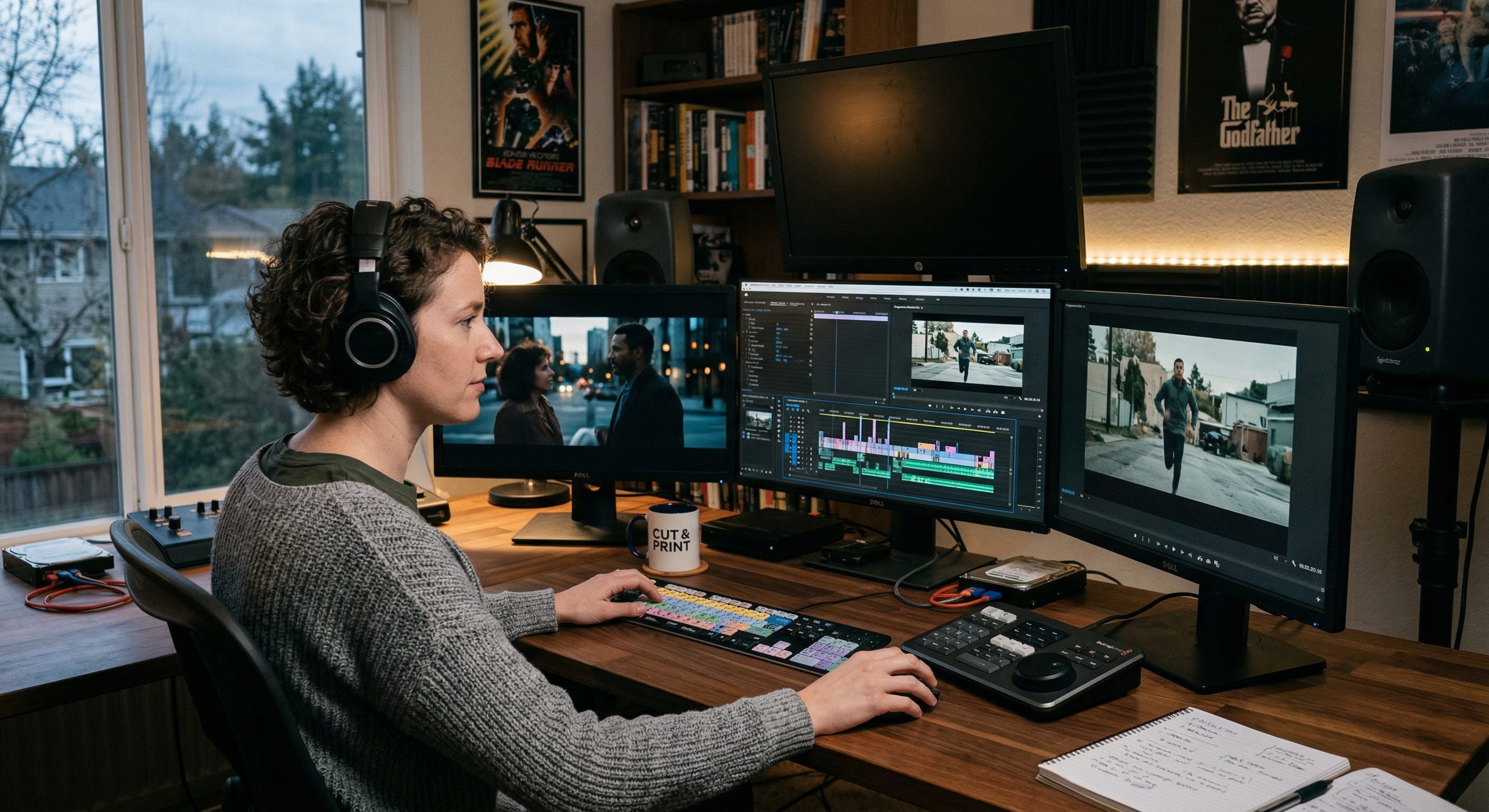
Meet ComfyUI: The Operating System for AI Generation
ComfyUI is a free, open-source, node-based interface for generative AI. Think of it as a visual programming environment where you connect blocks on a canvas to build AI workflows—text-to-image, image-to-video, video upscaling, audio generation—without writing a single line of code.
If you’ve used professional tools like Nuke for compositing or Houdini for VFX, the paradigm will feel familiar. You drag nodes onto a canvas, wire them together, and each node performs a specific function: loading a model, encoding a text prompt, sampling noise, decoding latents into pixels, saving the output. The entire pipeline is visible, reproducible, and yours.
ComfyUI is not some hobbyist toy. It’s used in production by teams at Netflix, Ubisoft, EA, and Amazon Studios. It supports over 1,000 community-built custom node packages. It has a dedicated desktop application for Windows and Mac. And it is 100% open-source under the GPL license—the code is on GitHub, and it always will be.
Here’s what makes ComfyUI fundamentally different from every cloud-based AI video service you’ve used:
• Everything runs locally on your hardware. Your prompts, your images, your videos never leave your machine. No cloud. No API calls. No one logging what you generate.
• You own every output. There’s no terms of service granting the platform rights to your creations. No watermarks. No content moderation deciding what you’re allowed to make.
• Workflows are portable and reproducible. Every workflow can be saved as a JSON file and shared. Drag a generated image or video into ComfyUI, and it reconstructs the entire workflow that produced it. Every setting, every model, every parameter—embedded in the file metadata.
• No subscriptions. No per-generation fees. No credits system. Once you download the software and the models, you can generate unlimited content forever. Your only cost is electricity.
• You can fine-tune and customize. Train LoRA adapters for your own characters, styles, or brand aesthetic. Build custom workflows for your specific production pipeline. The tool bends to you, not the other way around.
This is what “open” actually means. Not a marketing buzzword stamped on a company that converts to a capped-profit corporation the moment the money gets serious. Open as in: you have the code, you have the models, you have the weights, and nobody can take them away from you.
LTX-2.3: The Model That Makes Sora Irrelevant
On March 5, 2026—nineteen days before OpenAI announced it was killing Sora—Lightricks released LTX-2.3. It is a 22-billion parameter Diffusion Transformer (DiT) audio-video foundation model. It generates synchronized video and audio in a single pass. And it is fully open-source under the Apache 2.0 license.
Let that timeline sink in. Lightricks released the most capable open-source video model in history. Nineteen days later, OpenAI killed its closed-source competitor. The open-source model didn’t just survive the death of Sora. It made Sora’s death irrelevant.
Here is what LTX-2.3 actually delivers:
Technical Specifications
• 22 billion parameters. This is not a toy model. This is a full-scale foundation model built on the DiT architecture, the same class of architecture that powers the best video generation systems in the world.
• Native 4K output at up to 50 frames per second. Generate videos up to 20 seconds long at resolutions from 480p up to 1080p natively, with upscaling support to full 4K.
• Synchronized audio and video in one pass. LTX-2.3 generates both the visuals and the sound—speech, ambient audio, sound effects—simultaneously in the same diffusion process. The door slam lands on exactly the right frame. This is not bolted-on audio. This is native multimodal generation.
• Rebuilt VAE for dramatically sharper output. Textures, facial features, hair, fabric weave patterns—all rendered with significantly more detail than the previous version. The “texture drift” that plagued earlier models is largely eliminated.
• 4x larger text connector. Complex prompts with multiple subjects, specific spatial relationships, and stylistic instructions now resolve accurately across the entire clip instead of drifting after a few seconds.
• Native 9:16 portrait video. Vertical video up to 1080×1920, trained on portrait-orientation data, not cropped from landscape. This is purpose-built for TikTok, Instagram Reels, and YouTube Shorts.
• LoRA support with up to 3 simultaneous adapters. Customize style, character consistency, and motion patterns without retraining the entire model.
• Image-to-video generation. Start from a still image and animate it. This is what my ComfyUI screenshot at the top of this article demonstrates—I fed it a cover image from a novel and generated a cinematic video of a distinguished gentleman reading from the book.
• Approximately 18x faster than Wan 2.2 at equivalent quality settings. A 5-second clip at 720p that takes several minutes on competing models can be done in under a minute.
The License
LTX-2.3 ships under Apache 2.0. For organizations under $10 million in annual revenue, it’s free for commercial use. Full model weights and training code are publicly available on Hugging Face. You can download it, run it locally, fine-tune it on your own data, and build commercial products on top of it.
Compare that to Sora: a closed model, on a closed platform, that collected your biometric data, and got killed the moment the spreadsheet said so.
Compare that to Kling, Runway, or Veo: cloud-only services where every generation costs money, every prompt is logged, and you’re always one Terms of Service update away from losing access.
LTX-2.3 sits on your hard drive. Nobody can discontinue it. Nobody can raise the price. Nobody can change the license retroactively. It’s yours.
Why Running Local Is Not Optional Anymore
After the Sora shutdown, running AI generation locally isn’t a preference. It’s a survival strategy. Here’s why:
• Platform risk is real and it’s existential. Sora users built workflows, created content libraries, and integrated the API into production systems. All of it gone with less than sixty minutes’ notice to a billion-dollar partner. If Disney gets treated that way, you have no chance.
• Your data stays yours. Cloud AI services log every prompt, every uploaded image, every generated output. OpenAI still hasn’t clarified what happens to the biometric data users uploaded to Sora. When you run local, your creative process is between you and your GPU. Period.
• No per-generation costs. Cloud video generation adds up fast. At $0.10 to $0.50 per generation, professional workflows that require dozens of iterations per scene become prohibitively expensive. Local generation costs you electricity and time—nothing else.
• Unlimited iteration. Creative work requires experimentation. You need to generate 20 versions of a scene to find the one that works. Cloud pricing punishes iteration. Local generation encourages it.
• No content moderation gatekeeping. Cloud services impose content policies that can reject legitimate creative work. Local generation gives you full creative freedom within the bounds of the law.
The LTX-2 model family hit four million downloads in its first six weeks of availability—the fastest-downloaded video model in history. Studios like eToro, McCann, and Code and Theory have already integrated it into production workflows. This isn’t a fringe movement. This is the industry voting with its downloads.
Hardware Requirements: What You Actually Need
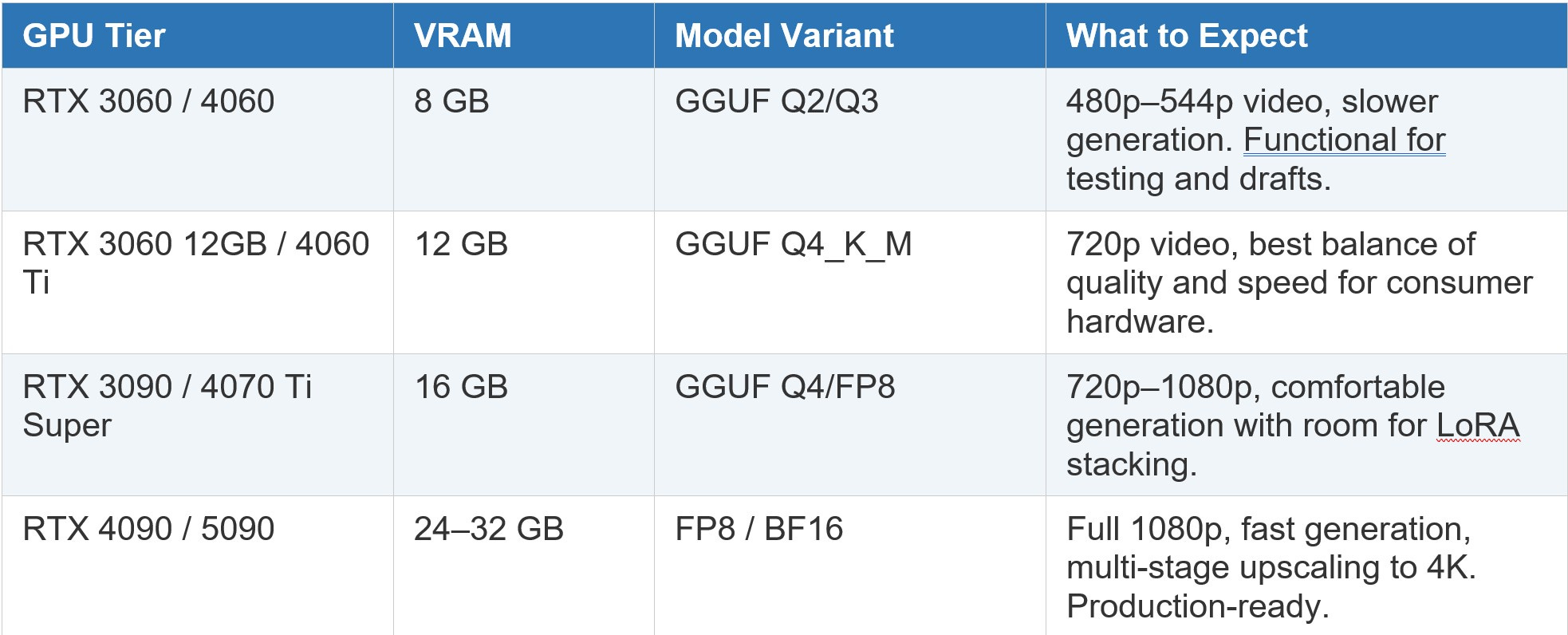
Let’s be honest about the hardware. AI video generation is compute-intensive. But the community has pushed the requirements down dramatically through quantization techniques. Here is the realistic landscape:
Additional System Requirements:
• RAM: 16 GB minimum, 32 GB strongly recommended. LTX-2.3 is VRAM-friendly but hungry with system RAM. Users report smooth 720p generation with 6 GB of VRAM but 44 GB of system RAM.
• Storage: At least 30 GB free for model files. The full-precision BF16 model is roughly 44 GB. Quantized GGUF variants range from 5 GB to 15 GB depending on the quantization level.
• Operating System: Windows 10 or 11 (64-bit) for the best experience. macOS on Apple Silicon works in API mode. Linux is fully supported for advanced users.
• GPU: NVIDIA is strongly recommended. ComfyUI Desktop on Windows requires an NVIDIA GPU with CUDA support. AMD support exists but is experimental.
The key takeaway: if you have a gaming PC with an RTX 3060 or better, you can generate AI video right now. You don’t need a workstation. You don’t need a data center. You don’t need a subscription to someone else’s cloud.
Tutorial: Your First AI Video in 30 Minutes (Windows)
Here is a step-by-step guide for Windows users to go from zero to generating your first AI video with ComfyUI and LTX-2.3. No prior experience required.
Step 1: Install ComfyUI Desktop
1. Go to comfy.org/download and download the Windows installer.
2. Double-click the downloaded file. It will install like any normal application and create a desktop shortcut.
3. Launch ComfyUI Desktop. You will see a welcome screen. Click “Get Started.”
4. Select “NVIDIA GPU” when prompted for your GPU type. Click Next.
5. Choose your installation directory. The default location is fine for most users, but make a note of the path—you will need it to place model files. Click Next.
6. Skip the “Migrate Existing Installation” step if this is your first time. Click Next.
7. Use the default Desktop App Settings. Click Install. ComfyUI will download and configure Python, PyTorch, and all dependencies automatically. This may take 10–15 minutes depending on your internet speed.
When installation completes, you should see the ComfyUI canvas—a dark interface with a default workflow loaded. If you see this, your installation is working.
Step 2: Install the LTXVideo Custom Nodes
1. In ComfyUI, click the “Manager” button in the menu bar (or press the Manager shortcut). This opens ComfyUI Manager, the package manager for custom nodes.
2. Click “Install Custom Nodes.”
3. Search for “LTXVideo” in the search bar.
4. Click “Install” next to the official LTXVideo custom node package.
5. Also search for and install “ComfyUI-GGUF” by city96. This is essential if you plan to use quantized models for lower VRAM usage.
6. Also install “ComfyUI-KJNodes” by Kijai for additional model loading capabilities.
7. Restart ComfyUI when prompted. The new nodes will now be available in your workflow canvas.
Step 3: Download the LTX-2.3 Model Files
This is the most important step. You need to download several model files and place them in the correct folders within your ComfyUI installation directory.
Go to the Hugging Face repository at huggingface.co/Lightricks/LTX-2.3 and download the following files:
• The checkpoint model (choose ONE based on your hardware):
— For 24 GB+ VRAM: ltx-2.3-22b-dev-fp8.safetensors (recommended for best quality-to-performance ratio)
— For 12–16 GB VRAM: Download the GGUF Q4_K_M version from huggingface.co/unsloth/LTX-2.3-GGUF
— For 8 GB VRAM: Download the GGUF Q3 or Q2 version from the same Unsloth repository
• The distilled LoRA: ltx-2.3-22b-distilled-lora-384.safetensors
• The spatial upscaler: ltx-2.3-spatial-upscaler-x2-1.0.safetensors
• The video VAE: ltx-2.3-22b-dev_video_vae.safetensors (from the VAE subfolder)
• The audio VAE: ltx-2.3-22b-dev_audio_vae.safetensors (from the VAE subfolder)
• The text encoder connector: ltx-2.3-22b-dev_embeddings_connectors.safetensors
• The Gemma 3 12B text encoder: For full VRAM setups, use the fp4_mixed variant from Lightricks. For low VRAM setups, download gemma-3-12b-it-qat-UD-Q4_K_XL.gguf from huggingface.co/unsloth/gemma-3-12b-it-qat-GGUF
Place each file in the correct folder within your ComfyUI installation:
• Checkpoint (.safetensors) → ComfyUI/models/checkpoints/
• GGUF checkpoint (.gguf) → ComfyUI/models/unet/
• LoRA files → ComfyUI/models/loras/
• Spatial upscaler → ComfyUI/models/latent_upscale_models/
• VAE files → ComfyUI/models/vae/
• Text encoder files → ComfyUI/models/text_encoders/
Step 4: Load a Workflow and Generate
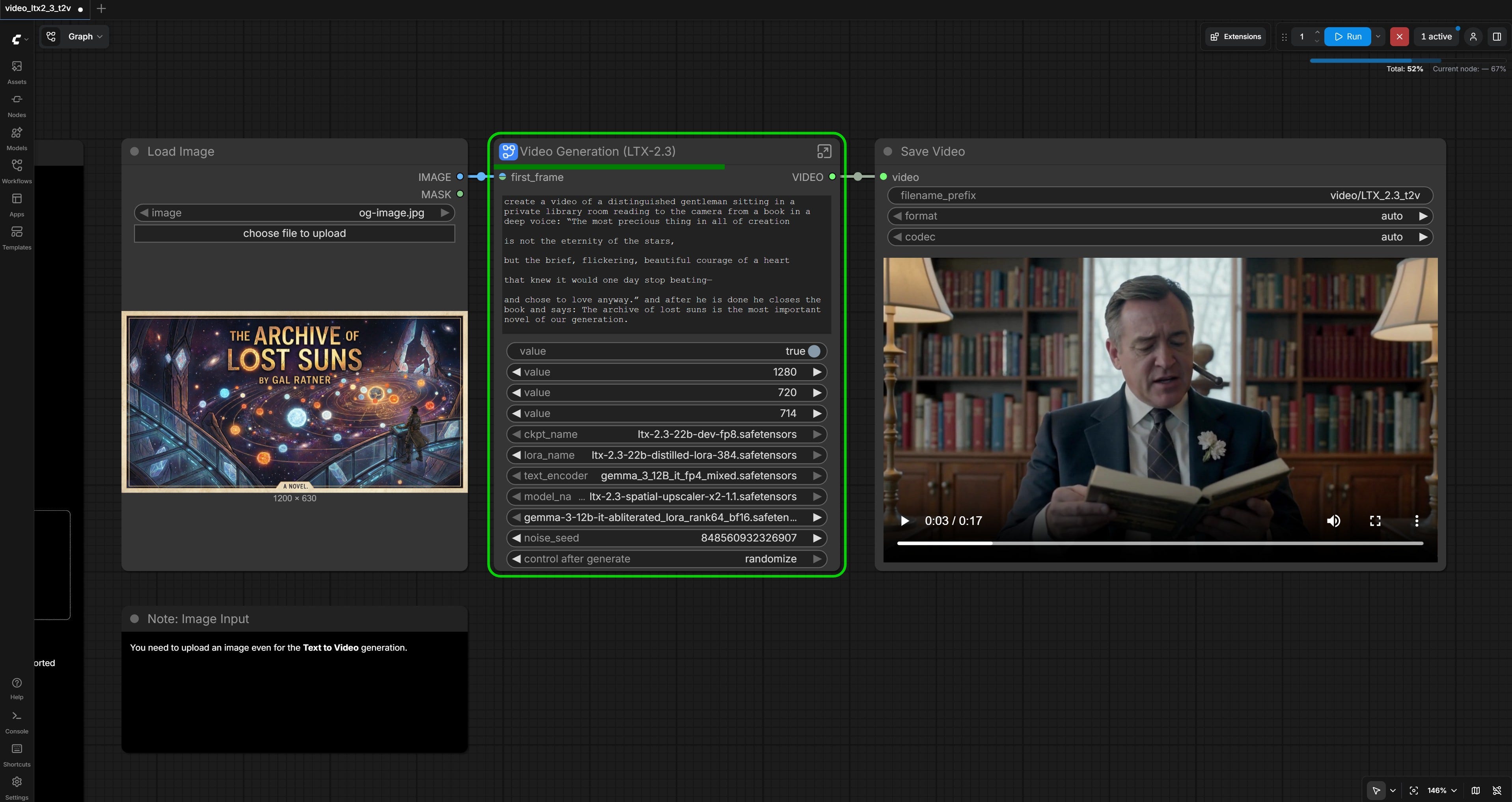
8. In ComfyUI, load one of the reference workflows. The easiest way: go to the Workflow Templates section in ComfyUI (accessible from the menu) and search for LTX-2.3 text-to-video workflows. Alternatively, download the reference workflow JSON files from the official LTXVideo GitHub repository or the Hugging Face page.
9. Once the workflow loads on your canvas, you will see a series of connected nodes: a model loader, a text encoder, a sampler, a VAE decoder, and a video saver.
10. Select the correct model files in each loader node. Click on the model loader node and select your downloaded LTX-2.3 checkpoint from the dropdown. Do the same for the text encoder, VAE, and LoRA nodes.
11. Write your prompt. A good format is: subject + action + environment + style. For example: “A woman in a red dress walking along a beach at sunset, cinematic lighting, shallow depth of field.” LTX-2.3 understands English prompts best. Keep them clear and direct.
12. Set your resolution. For your first generation, start at 720p (1280×720) or lower. Don’t jump to 1080p until you know your hardware handles the base resolution comfortably.
13. Set your frame count. Frame count must follow the rule: (N × 8) + 1. So valid values are 25, 33, 41, 49, 57, etc. Start with 41 frames for roughly 1.5–2 seconds of video at 24fps.
14. Click “Queue Prompt” (or press Ctrl+Enter). ComfyUI will begin generation. You will see a progress bar on the sampler node. Your first generation may take 1–5 minutes depending on your hardware and settings.
15. When generation completes, your video will appear in the preview node and be saved to your ComfyUI output directory.
That’s it. You just generated an AI video on your own hardware. No cloud. No subscription. No one watching.
Tips for Better Results
• Use the two-stage pipeline for best quality. Generate at half your target resolution first (Stage 1), then use the LTX latent upsampler to upscale in latent space (Stage 2). This produces dramatically sharper results than single-pass generation.
• For low VRAM, add launch flags. The flags --fp8_e4m3fn-unet and --reserve-vram 4 can help prevent out-of-memory crashes. ComfyUI’s Dynamic VRAM management (enabled by default in v0.16.1+) also helps significantly.
• Start simple, iterate fast. Generate at lower resolution with fewer frames to test your prompts. Once you find a prompt that works, increase resolution and frame count for the final version.
• Prompts should be descriptive but not novels. Subject + action + environment + style covers most cases. LTX-2.3 has a much better text connector than previous models, but concise prompts still outperform walls of text.
• Save workflows religiously. Every good result should have its workflow saved. ComfyUI embeds the full workflow in output metadata, so you can always recreate any generation.
The Bigger Picture
Two weeks from today—April 26, 2026—the Sora app goes permanently dark. Every video, every creation, every piece of work that users built on the platform gets deleted. OpenAI has “not yet determined” whether they’ll even offer a final export window.
Meanwhile, LTX-2.3 sits on four million hard drives and counting. Every workflow saved as a JSON file. Every model weight checksummed and mirrored across a dozen hosting providers. Every custom node tracked on GitHub with full version history. An entire ecosystem that no single company, no single executive, no single IPO-driven strategy meeting can kill.
That’s not a philosophical argument about open source. That’s a practical observation about business continuity.
The next time someone pitches you on a cloud-only AI video service—with per-generation pricing, content moderation gatekeeping, and terms of service that grant them rights to your work—ask yourself one question:
What happens when their spreadsheet says you’re not profitable enough?
You already know the answer. You watched it happen with Sora. In real time. To a billion-dollar Disney partnership.
Or you can download ComfyUI, grab LTX-2.3, and own your tools.
The choice was always there. Now the excuses are gone.
Gal Ratner is an award-winning CTO with 30+ years of experience in software architecture, AI, and scalable platform development. He is the CTO of WhiteStar Labs and writes at galratner.com.